
We are kicking off the new year with a bang! The single most requested Ready Room enhancement is here! Synclinical is overjoyed to announce support for custom roles in Ready Room. Now you are able to customize what every team member can see and do inside an inspection.
Roles
A role is a named and color-coded collection of permissions that constrain what a user assigned to that role can see and do.
Each inspection has ten default roles, roughly analogous to the personas you may have previously used in Ready Room: Communicator, Assigner, Subject Matter Expert, Inspection Host, Ready Room Reviewer, Secondary Reviewer, Scribe, Restricted SME, Inspection Admin, and Observer. Out of the box, all roles except the last three have the same set of permissions. Role customization is optional, so if you don’t make any changes, Ready Room will continue to work the way it always has.
Any system administrator or team member with permission to configure inspections can access roles via the new “Roles” menu item in the inspection configuration UI. From here, it is possible to edit or delete any of the existing roles and to create new roles.
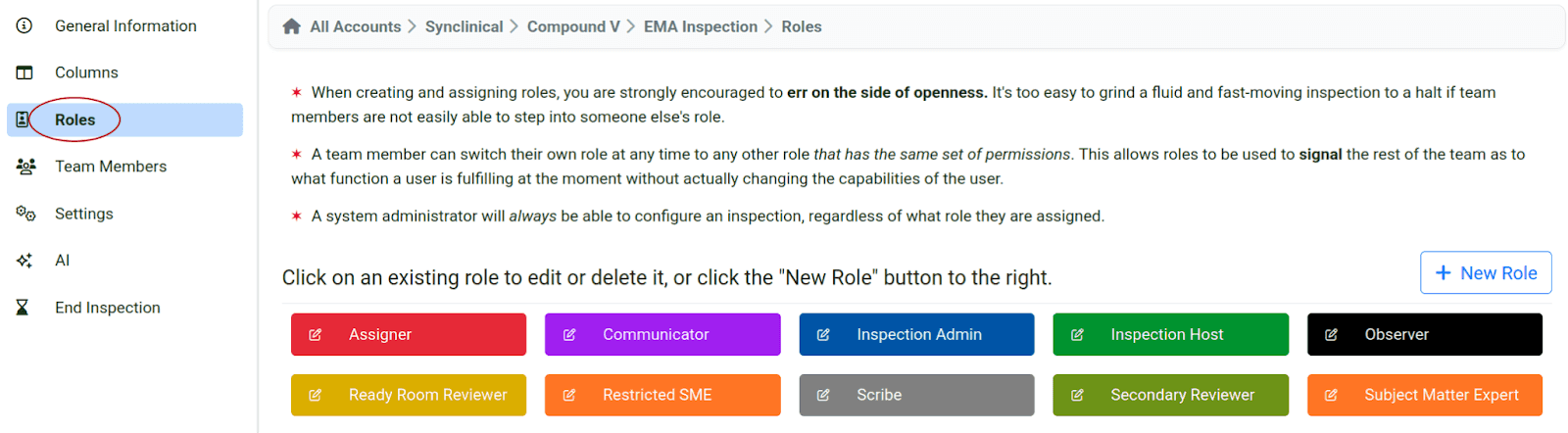
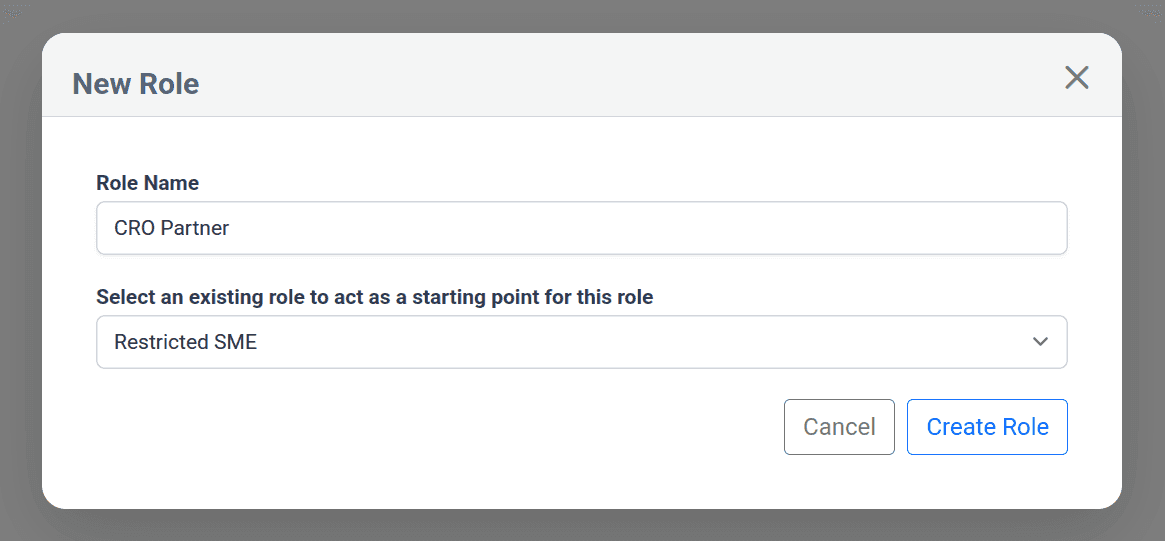
To create a new role, click the “New Role” button on the left. When creating a new role, you must give it a unique name and select an existing role to use as a template.
To edit a role, simply click its name.
You can rename and/or change a role’s color by clicking anywhere in the role's title bar.

A role’s color is used extensively in the inspection UI, primarily to show that there is a relationship between this role and a particular column. In the screenshot above, an Inspection Host role is using the same color as the Host Review column. If there is no such relationship, as with a Scribe or an Observer, then use any color you like.
You can delete a role, too, but only if that role is not currently assigned to any user.
As always, roles are assigned to users in the “Team Members” section of the configuration interface.
Permissions
After selecting or creating a role, you may select from 54 permissions that constrain how users with that role will interact with the inspection board, individual requests, and the collaboration tools (chat etc.).
Changes to roles and permissions are live. When you click the save button, the UI for any user logged in with that role will be updated immediately. The same is true if you assign a user to a new role.
Note that the presence or absence of permissions is not the only thing that controls whether an action can be performed. Actionability is also affected by the state of the inspection or an individual request. For instance, when an inspection is locked, no modifications are allowed regardless of any permissions. Similarly, you cannot recover a request that has not been deleted or upload a file to a request that’s been released.
Inspection Board
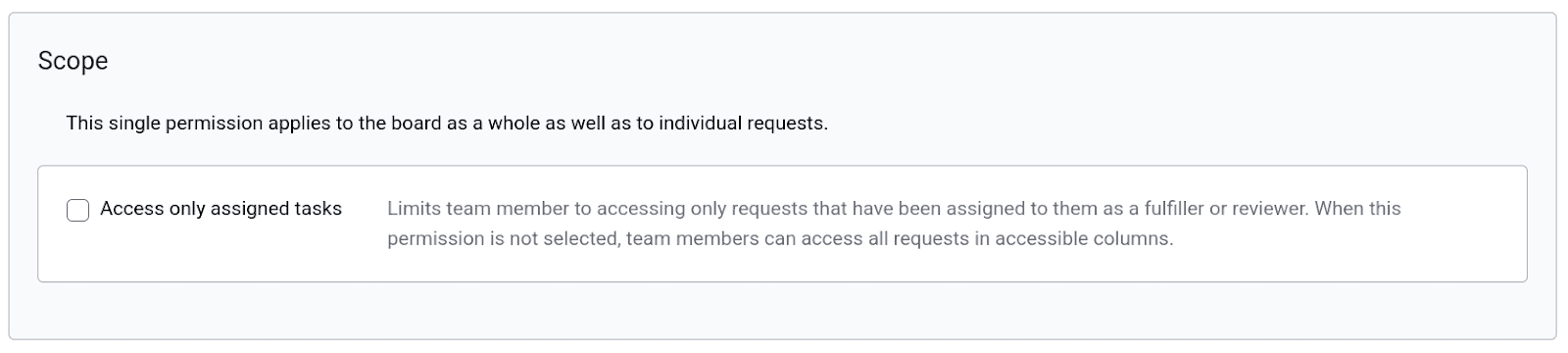
Scope
The very first permission controls whether a user can see all requests or only those assigned to them as a fulfiller or reviewer.
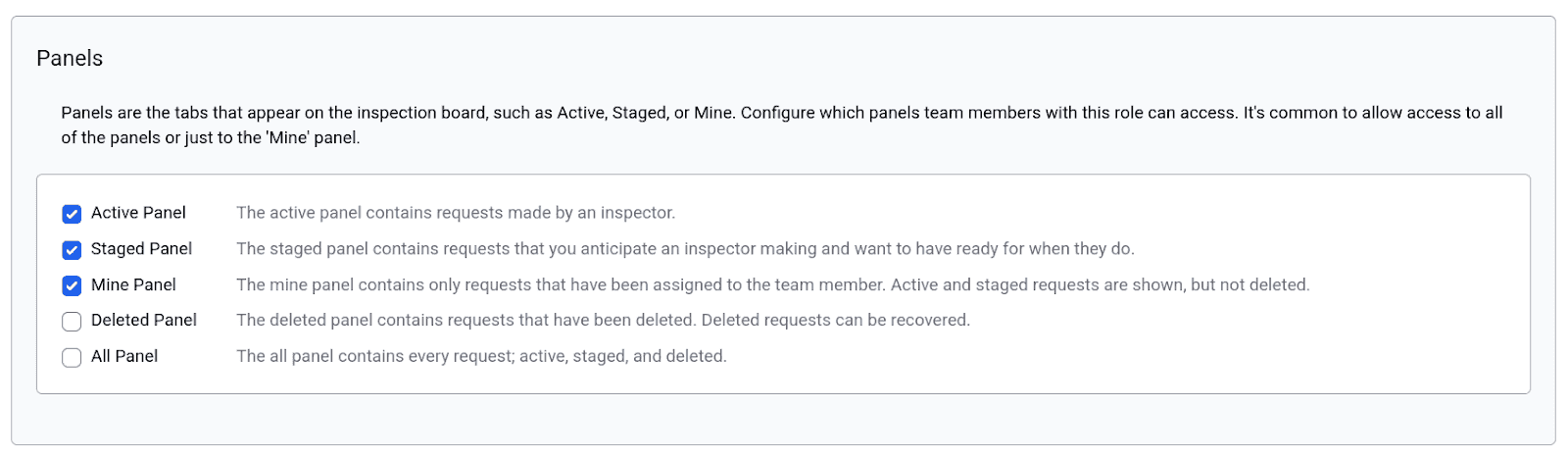
Panels
Every “panel” (Active, Staged, Mine, etc.) on the inspection board has its own view permission.
Columns
Each column in the Ready Room workflow has two permissions: View and Modify. The View permission allows users to see requests in the column. The Modify permission allows a user to both view and make changes to requests in the column, including moving requests in and out of columns.
Using column permissions allows you to fine-tune roles. Imagine a Limited SME role that has View and Modify permissions for the first three columns (Assign, Fulfill, and Review), view-only permissions for the Document Review and Host Review columns; and no permissions at all for the Inspector Review column.
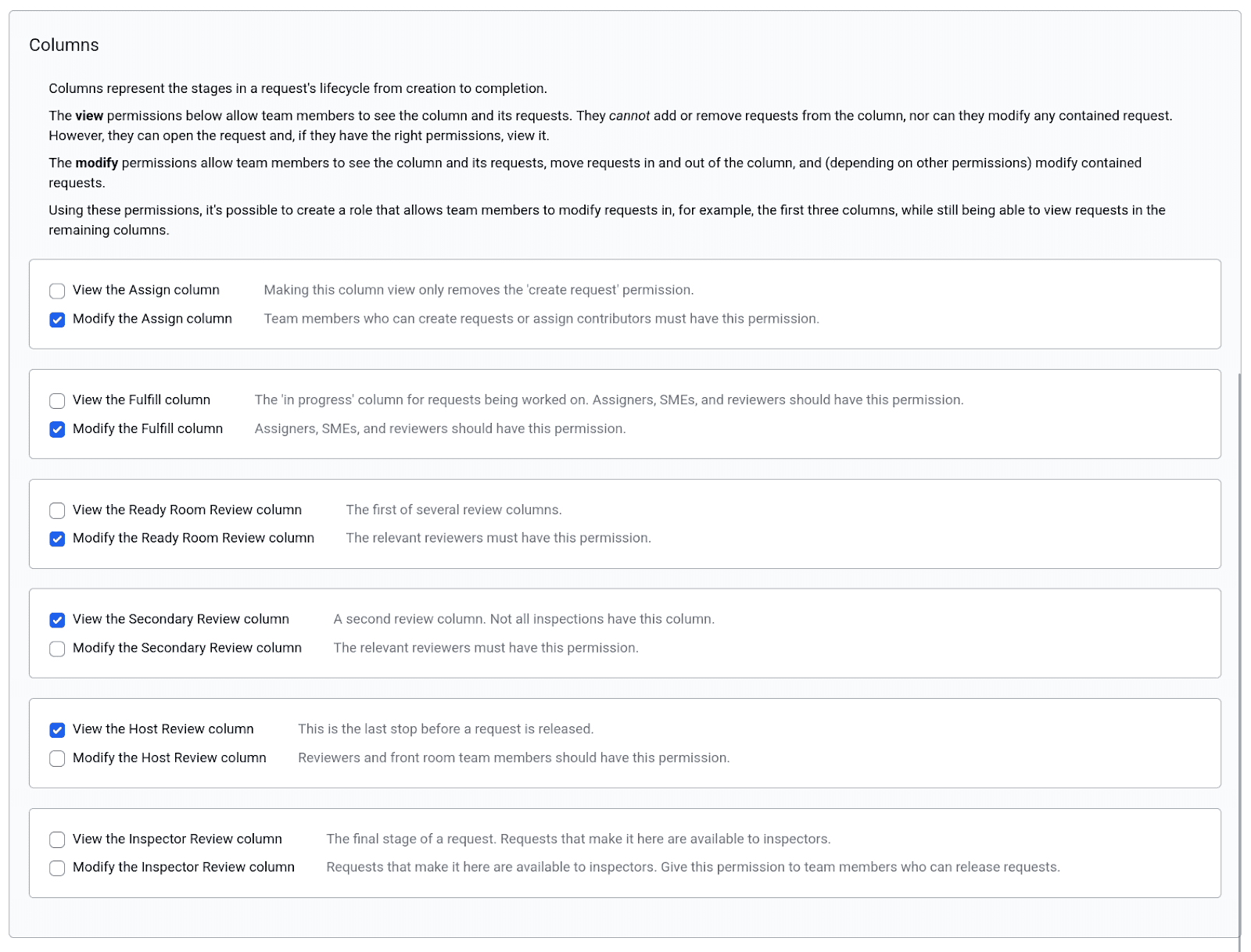
In general, anyone who can modify a request will need write permissions for the column the request is in and for the two neighboring columns (if any), so they can move the request to the next or previous stage of the workflow.
Actions
There are additional board-level permissions to control which users can create a new request, download inspection data, see the inspector audit trail, and view analytics.
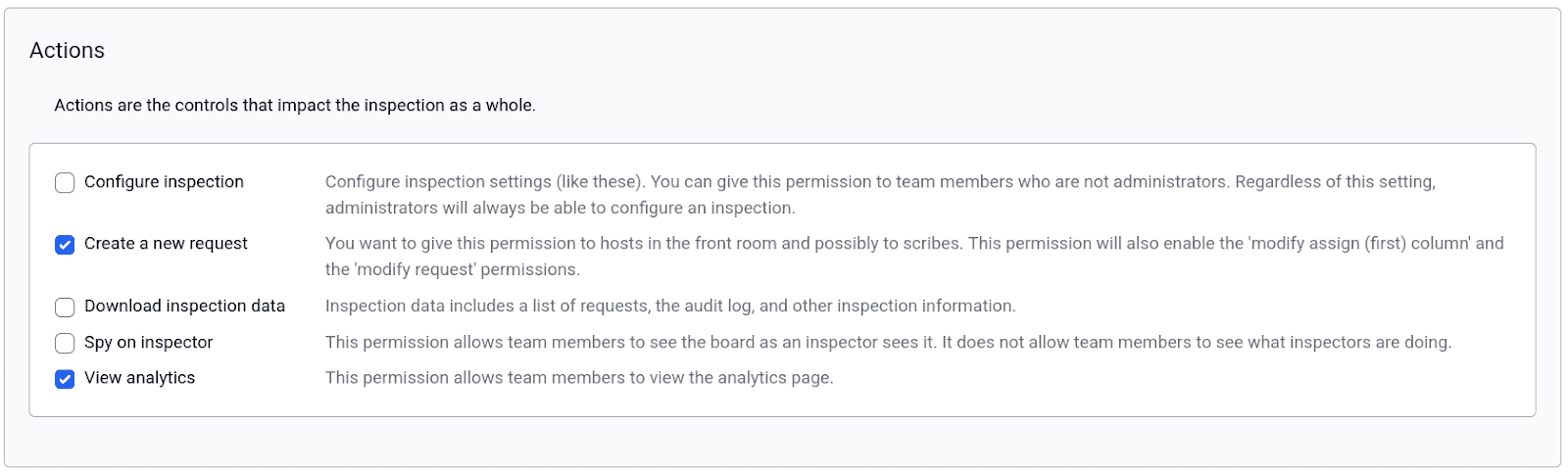
Most interesting is the permission that enables a role to configure an inspection. Previously, only system administrators could configure inspections, but with this permission, you can give that ability to an ordinary team member, allowing you to reduce the number of people who need system admin privileges.
Note well, system administrators can always configure an inspection, even if you delete the inspection admin role.
Requests
Contributors
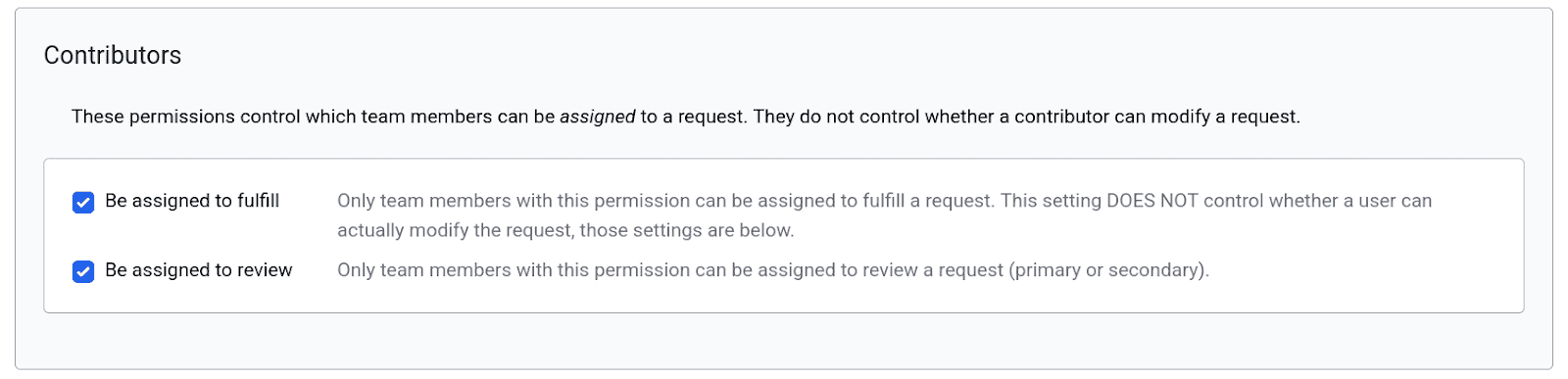
The first two request-level permissions determine if a holder of the current role can be assigned to a request as a fulfiller or a reviewer.
Content
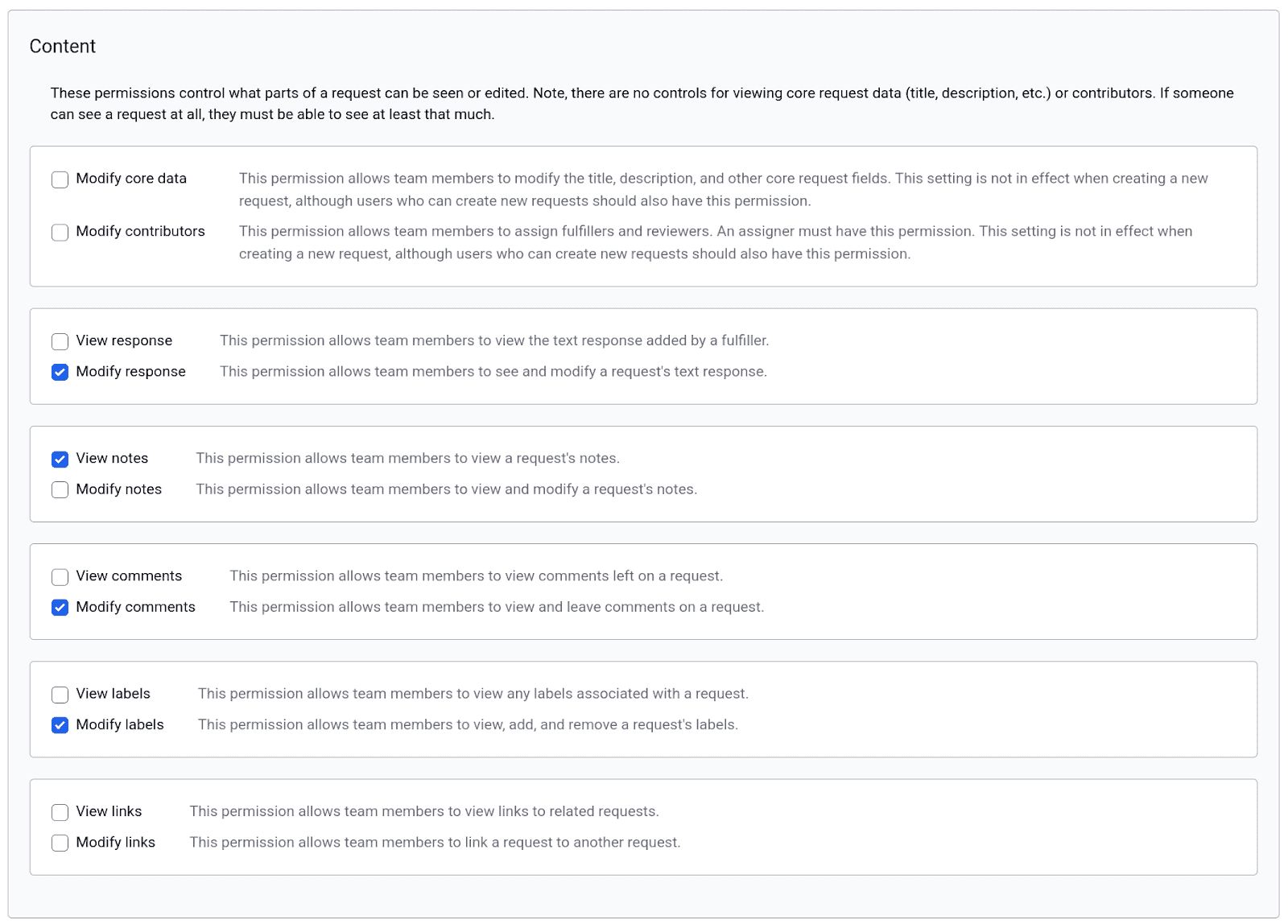
A number of permissions control which request components can be viewed, edited, or hidden, although the core request data, i.e. what the inspector asked for and the assigned team members, are always visible to users who can access the request.
As with columns, most of these permissions have both a View and Modify setting, where Modify implies View. If neither are selected, the component is not rendered at all. Using these permissions, you can, for instance, create a role that can view the request, contributors, and notes; modify the response, comments, and labels; and not see links to other requests at all.
Attachments
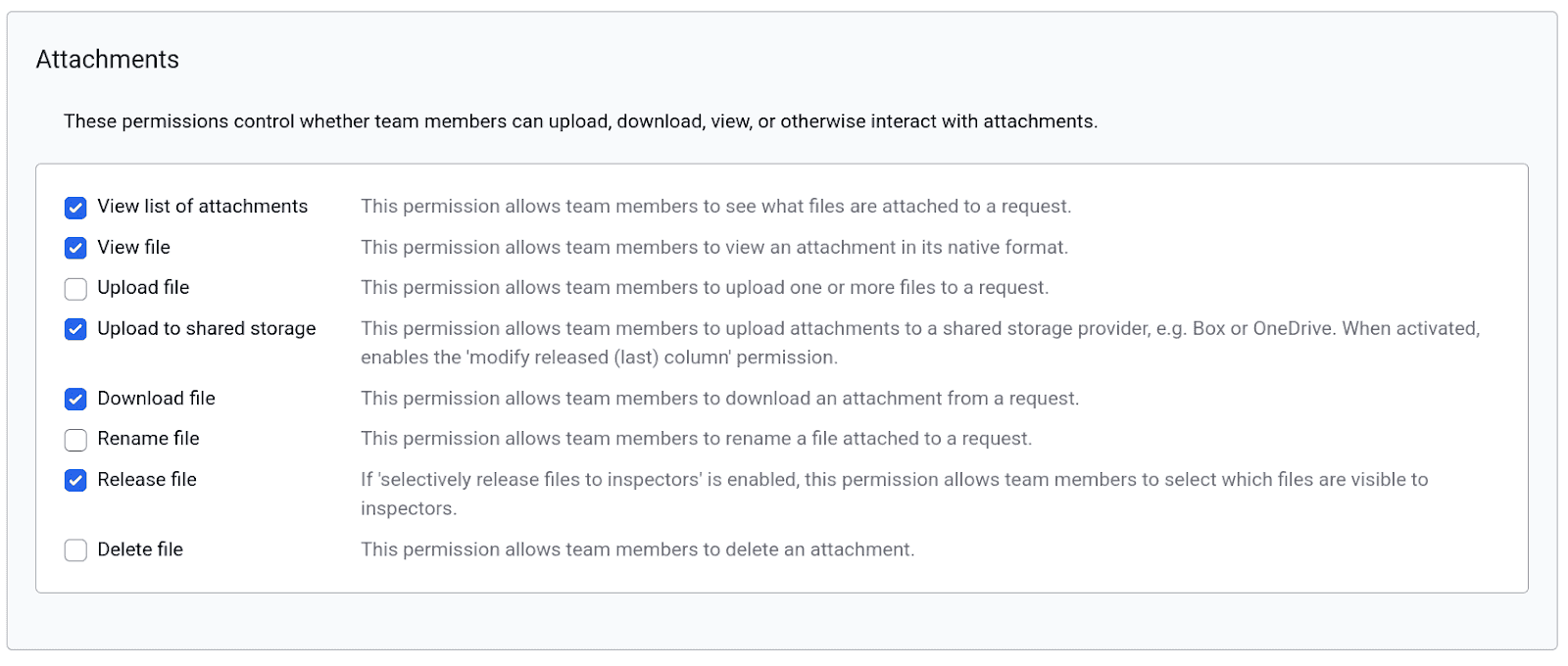
Ready Room has a separate permission for every action a user can take with attachments.
The first permission, View List of Attachments, enables the role to manage attachments at all. If this permission is disabled, holders of this role will simply not see the file management component. We can’t come up with a reason to do this, but it’s there if you can.
The remaining permissions, such as View, Download, and Delete, should be self-explanatory. As an example, you may decide that an Inspection Host can view and download attachments, upload files to shared storage, and determine if a released file is visible to the inspector, but not to upload, delete, or rename files.
Controls
The last few request-level permissions influence the controls that apply to the request as a whole. They’re pretty straightforward; turn them on or off as desired.
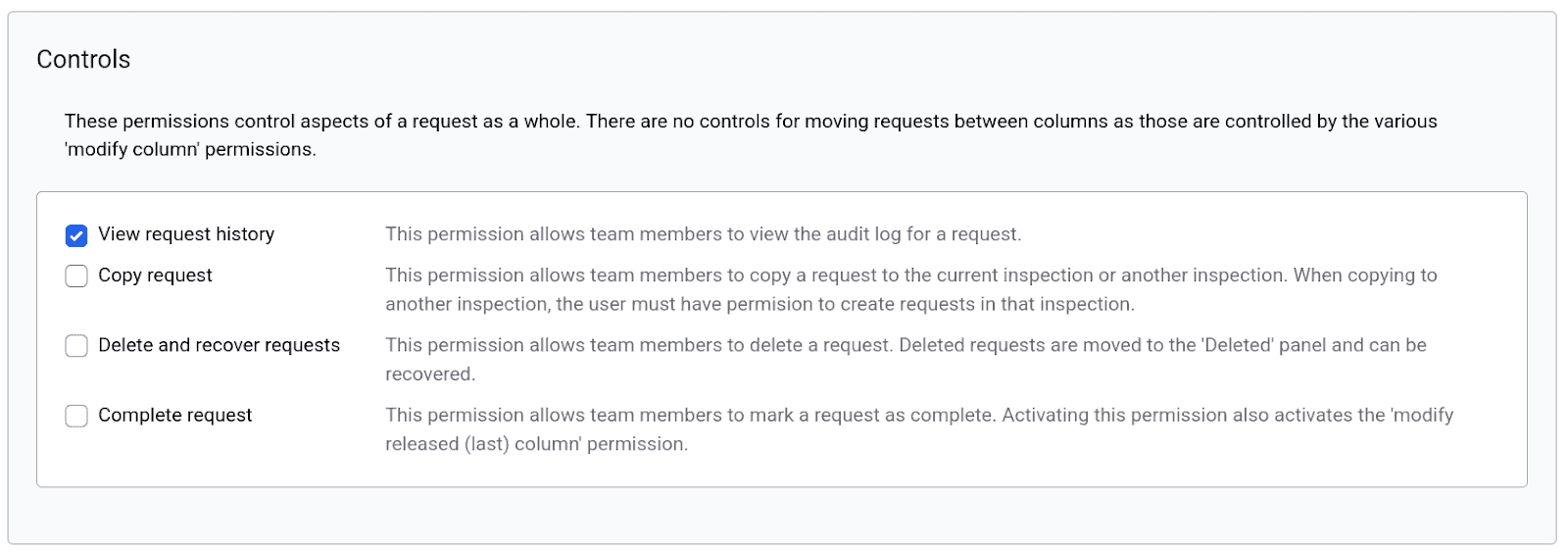
It’s worth noting that when copying a request to a different inspection, the list of available inspections will be limited to those for which the user has “create a request” permissions.
Collaboration Tools
Chat and Briefings
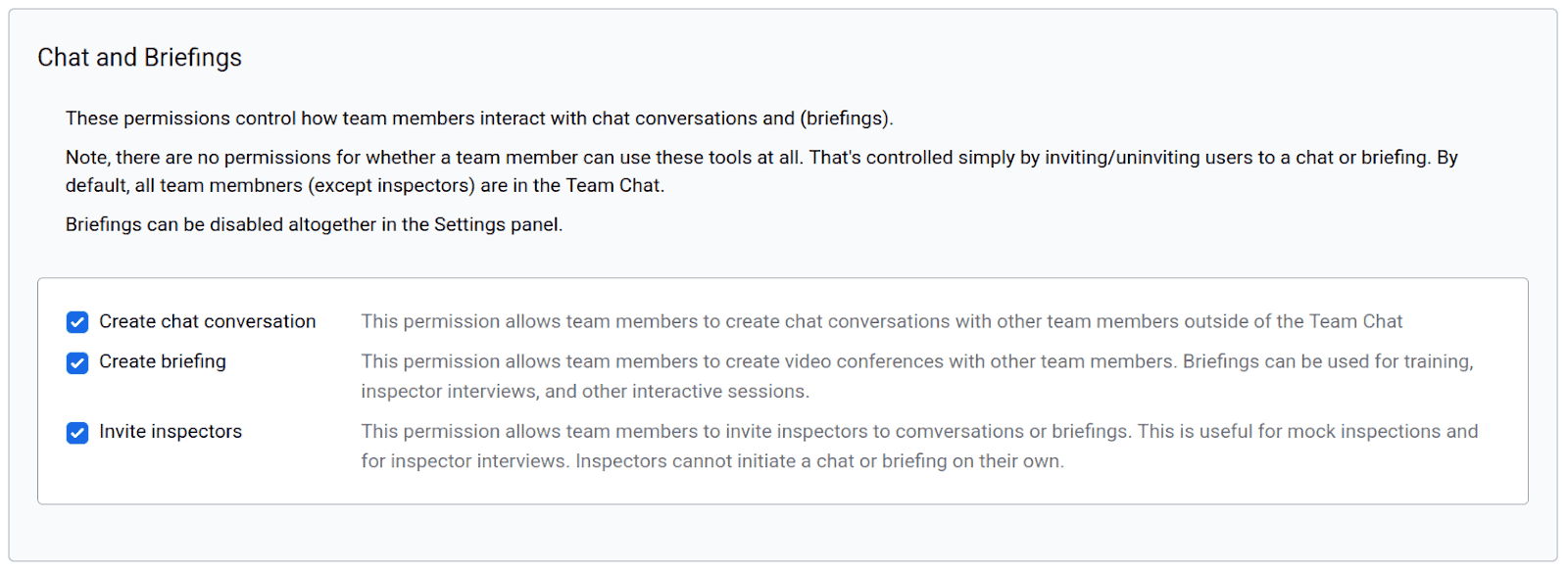
Whether a user can participate in a chat or a briefing (video conference) is determined solely by whether that user has been invited into a chat or a briefing. There are no separate permissions for allowing or denying users the ability to participate at all. Note that all team members (except inspectors) are invited into the default chat. Members of the default chat can be removed (or added) by anyone with the “configure an inspection” permission.
That said, you can control who can create a breakout chat or a briefing, and if they can, whether they are allowed to invite inspectors.
Scribe Notes
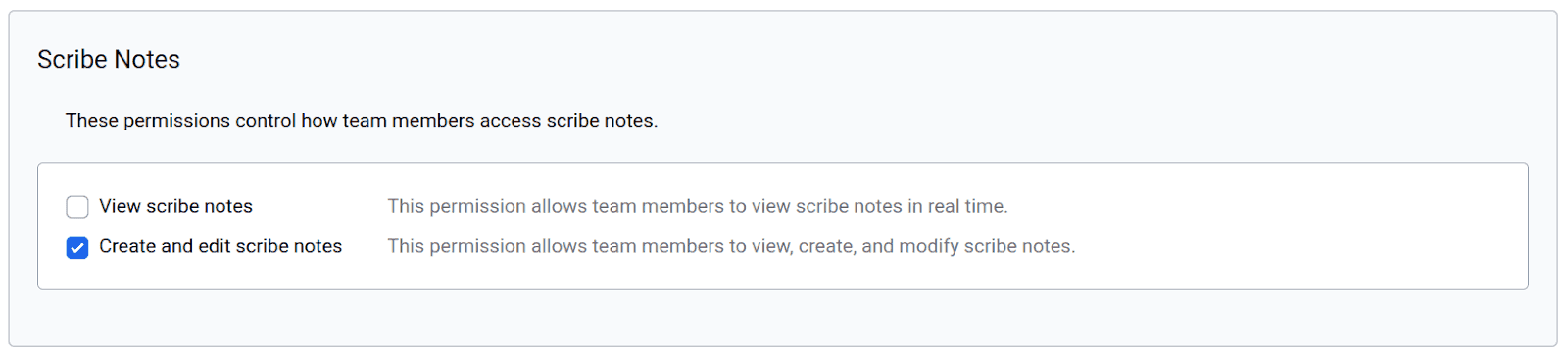
Each role can be given permission to view scribe notes; or to view, create, and edit scribe notes; or neither. Turning both permissions off will keep a holder of this role from seeing the scribe note components on the inspection board and from accessing scribe notes on their own screen.
Using these permissions, you can, for example, create roles that can view scribe notes (but not edit them) and other roles that can’t see scribe notes at all.
Changing Roles
Users in Ready Room have been able to change personas at will to any other persona that shared the same set of permissions. For example, a user with the Communicator persona could change to an Assigner persona, because those two personas had the same set of permissions.
That is still the case; a team member can dynamically change their role to any other role that has the exact same set of permissions. This is useful in a fast moving inspections where a single individual may need to quickly switch among roles and signal to the rest of the team that they have done so.
Final Thoughts
With great power comes great responsibility.
When setting up roles for an inspection, it can be very tempting to strictly limit what each role can do. We encourage you to err on the side of openness–to trust your team to do the right thing, rather than tying their hands in an attempt to keep them from doing the wrong thing. Not only does openness engender trust, but it can also keep a very busy inspection from grinding to a halt because the one person with the “release a request” permissions cannot be found.
Similarly, there is also a need to be sure that the sum of all roles can effectively manage an inspection. You don’t want to find out after the inspectors arrive that no one can upload documents to the Box folder they just shared with you. This means you’ll need to test and fine-tune your roles in training and mock inspections to make sure you have them all dialed in.
We are beyond happy that Ready Room users can now create and manage roles, and that we were able to deliver this functionality without compromising our firmly held beliefs in trust and mutual respect. Your feedback, as always, is welcome. Please tell us what you think.